Videos
IRIS+ Professional uses both live and recorded (historic) videos as its inputs. The videos can be added from RTSP streams or uploaded from your local storage. The videos are then processed by the Indexer, which extracts the necessary information from the video stream. The extracted information is then used by the queries to generate alerts.
Manage Videos
Make sure to first consult the video requirements.
Videos are grouped into folders. On first login, your Workspace will be displayed, which acts as the root folder for all videos and queries - videos are created here by default. You can create subfolders to organize your videos better.
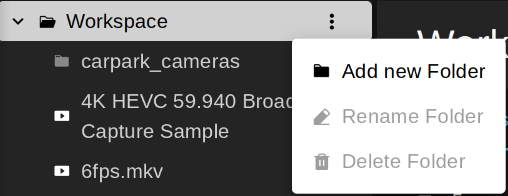
Videos can be filtered by their status (e.g., Indexing, Uploading, Error) or by the folder they are in.

Add Camera
- On the left sidebar, navigate to the folder where you would like to add videos.
- Click the +Add button in the upper right corner of the screen select the type of video source you would like from the dropdown menu.
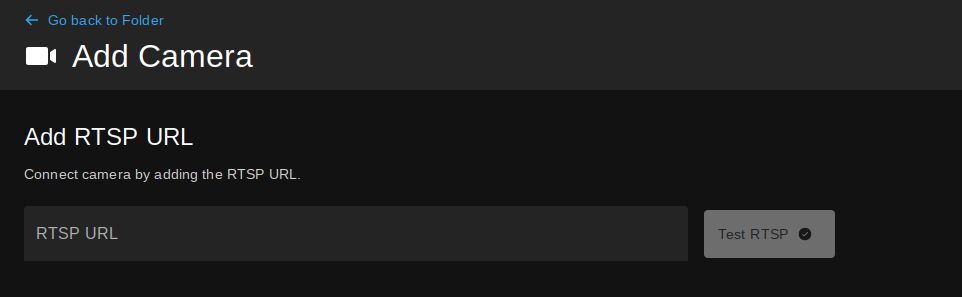
Type the RTSP URL of your camera into the text field, then click Test RTSP.
If the camera meets all requirements, the test is successful, and a thumbnail preview of the stream gets diplayed on the right, together with metadata, such as the resolution, frame rate, and codec of your stream.
Note that the camera is not registered yet. Click Add Camera to proceed.
Video details
- Camera name: A name identifying your camera.
- Description: Describe the camera here.
- Retention time (in days, 1 by default): The retention time for videos, after which their data will be deleted. 1 day by default.
Analysis
This bar shows the capacity of the Indexer to process video streams.
Analysis Parameters
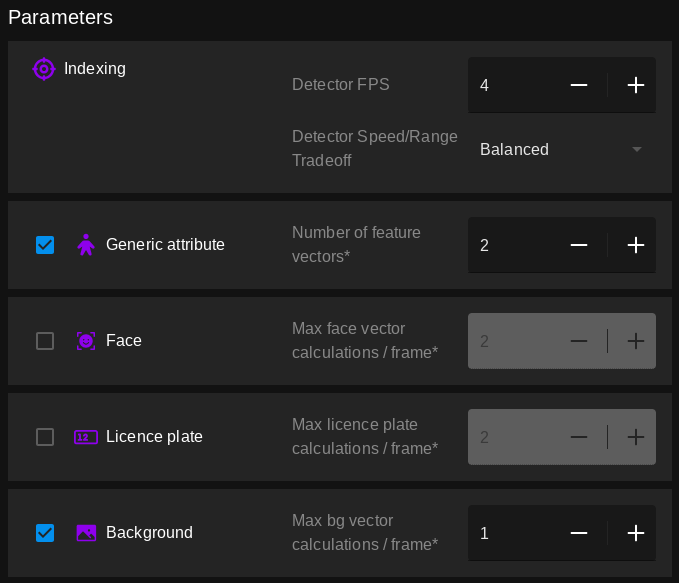
The parameters are divided into three categories: Indexing, Generic attribute, and specific attributes for each detector. The parameters are set to default values, which are recommended for most use cases. However, you can adjust them to better suit your needs.
Info
Note that currently, it is not possible to edit the parameters after the camera has been added. If you need to change them, you will have to delete the camera and add it again with the new parameters.
- Detector FPS (4 by default): The number of frames the detector will process per second.
- Detector speed/range treadeoff (Balanced by default): The speed/range tradeoff of the detector.
On by default. Enables the extraction of generic attributes from the video stream.
- Number of feature vectors (2 by default): The number of feature vectors to extract from the video.
Enables the extraction of face attributes from the video stream.
- Max vector calculations per frame (2 by default): The maximum number of vector calculations per frame.
Off by default. Enables the extraction of license plate attributes from the video stream.
- Max license plate calculations per frame (2 by default): The maximum number of vector calculations per frame.
- Max bg vector calculations per frame (1 by default): The maximum number of vector calculations per frame.
Click Add Camera to register your stream and start indexing.
Upload Video
- On the left sidebar, navigate to the folder where you would like to add videos.
- Click the +Add button in the upper right corner of the screen select the type of video source you would like from the dropdown menu.
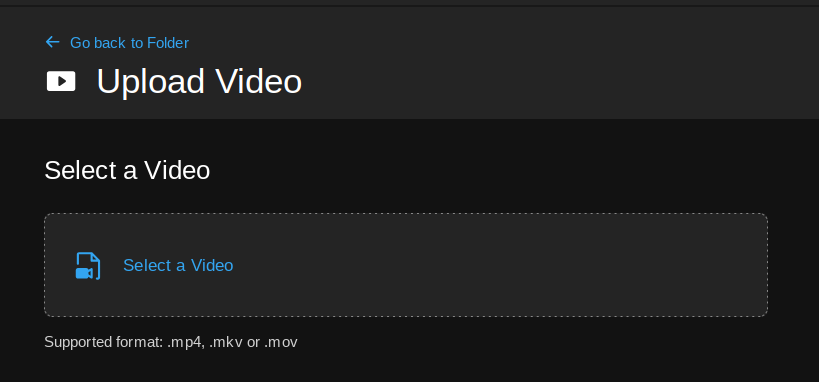
Video details
- Video name: A name identifying your video, auto-filled by default.
- Description (optional): Describe the video here.
- Start date and time: The date and time to index the video from. Type it or select one by clicking the calendar icon. The current date and time is used by default.
Analysis
This bar shows the capacity of the Indexer to process video streams.
Analysis Parameters
The parameters are divided into three categories: Indexing, Generic attribute, and specific attributes for each detector. The parameters are set to default values, which are recommended for most use cases. However, you can adjust them to better suit your needs.
Info
Note that currently, it is not possible to edit the parameters after the camera has been added. If you need to change them, you will have to delete the camera and add it again with the new parameters.
- Detector FPS (4 by default): The number of frames the detector will process per second.
- Detector speed/range treadeoff (Balanced by default): The speed/range tradeoff of the detector.
On by default. Enables the extraction of generic attributes from the video stream.
- Number of feature vectors (2 by default): The number of feature vectors to extract from the video.
Enables the extraction of face attributes from the video stream.
- Max vector calculations per frame (2 by default): The maximum number of vector calculations per frame.
Off by default. Enables the extraction of license plate attributes from the video stream.
- Max license plate calculations per frame (2 by default): The maximum number of vector calculations per frame.
- Max bg vector calculations per frame (1 by default): The maximum number of vector calculations per frame.
Click Upload Video to register your video and start indexing.
Next steps
Once you have added your videos, you can proceed to running queries.