Near Miss Detection
The Near Miss query detects if a moving object comes close to a Person. The maximum time and space between the two objects to trigger an alert is configurable.
Tipical use case is detecting if a car comes close to a pedestrian, almost resulting in collision.
Prerequisites
- IRIS+ Professional is configured with at least one indexer.
- Query types and classifiers have been registered.
- At least one video has been added.
Setup
-
Select one or more videos from your workspace Click +Set up New Query.
-
Select Near Miss from the list of query types.
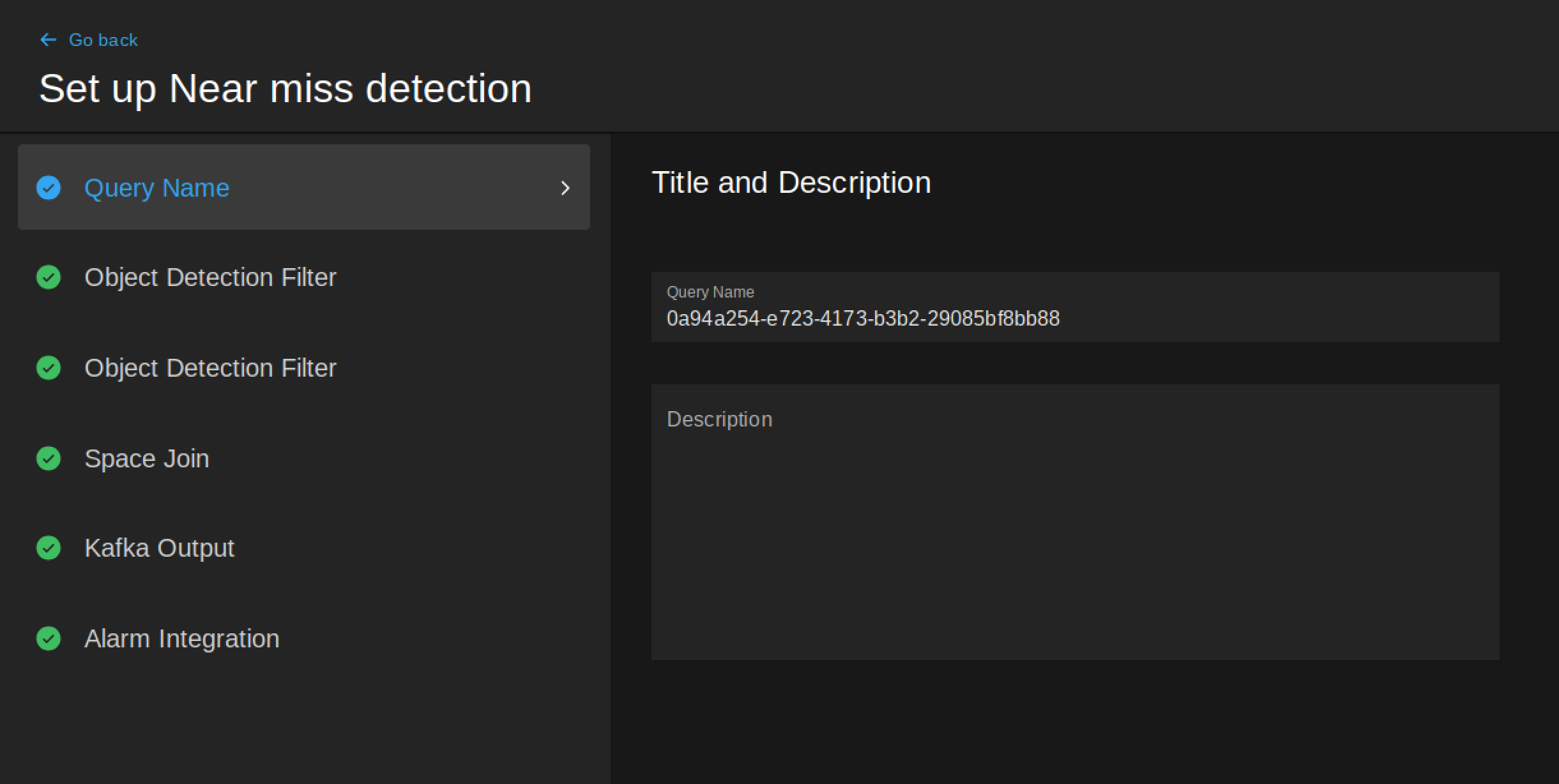
1. Query Name
Give your query a name to better identify it; a unique identifier is generated by default. A description can also be added (optional).
2. Object Detection Filter (Person)
The filter used to detect Person objects in the scene.
Video ids
The thumbnail image of the previously chosen video is displayed here.
Time interval
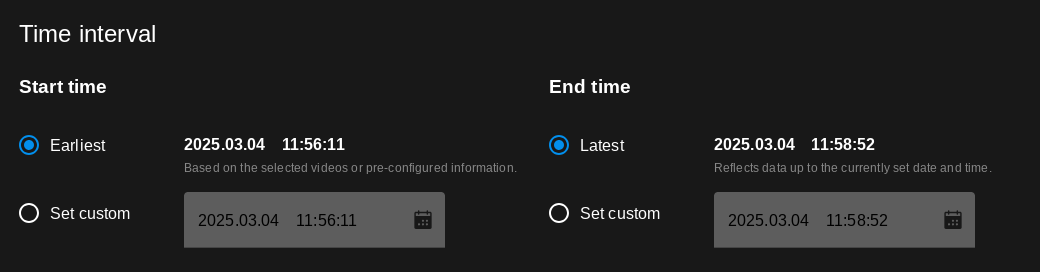
Select a time frame for the analytics to run, depending on the type of video selected:
- Earliest: Run the query from the time shown (set during video registration as the beginning timestamp of the video).
- Latest: Run the query until the time shown (set during video registration as the end timestamp of the video).
- Given Date: You can select a custom start and end date and time to run the query on. Type the desired date and time or select them by clicking the calendar icon.
- Live: Analysis is run live, continously.
- Interval: You can select a custom start and end date and time to run the query on. Type the desired date and time or select them by clicking the calendar icon.
- Set interval to: Choose from the presets below to run the query on a given time inmterval.
-
Min. track duration(in milliseconds): The minimum time objects need to be in the zone to trigger an alert. If the time duration of the track is less than the min track duration parameter, the query will not trigger an alert. If set to 0, the query will trigger an alert immediately once the object enters the area.
-
After out of zone fire again: If ticked, the query will trigger an additional alert if the person leaves the area.
-
Use bottom reference point: Choose either the center or the bottom of the bounding box as a reference point to determine whether the object is within the ROI.
3. Object detection filter (2nd object type)
The filter used for detecting moving objects - Bus, Car and Truck by default - that come close to Person objects. The minimum amount of movement needed for detection is configurable.
Object types
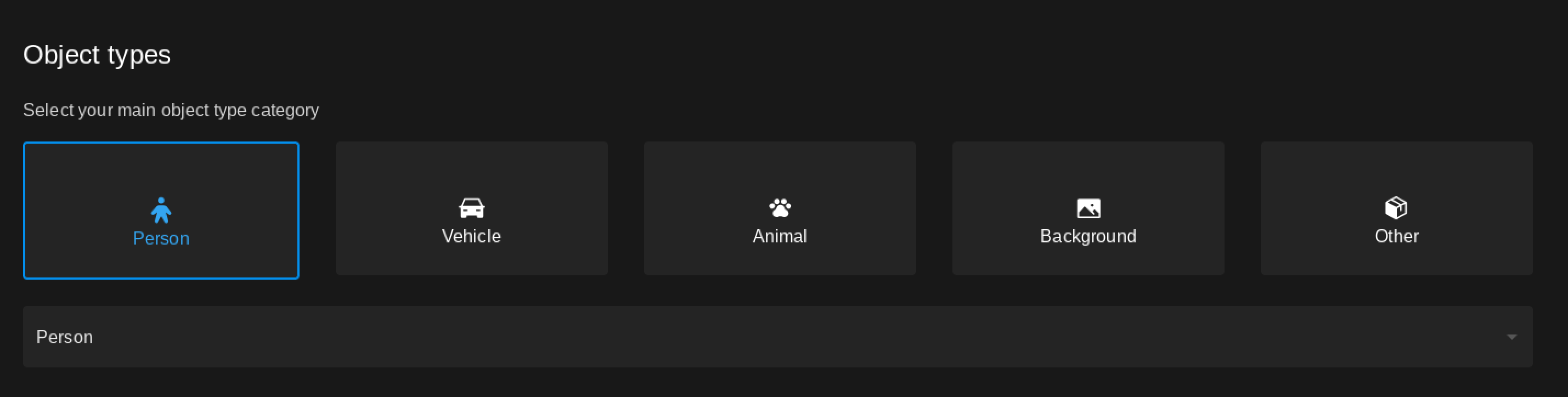
Select one or multiple object types you want to search for - Bus, Car and Truck are selected by default. Click the dropdown menu to see the list of available object types for the selected object category.
Sampling
-
Sampling interval (in milliseconds, 1000 by default): The rate at which tracks get sampled.
-
Minimum movement (in percentages, 5 by default): The minimum amount the object needs to move to be considered as moving, relative to its size.
4. Space join
Configure the maximum time and space between the two objects needed to trigger an alert.
-
Max time difference (in milliseconds, 1000 by default): The maximum time difference between the objects. If the time difference between the two objects appearing is less than equal then the value set here, the query will trigger an alert.
-
Max distance (in ratio, 1 by default): The maximum distance between the objects to trigger an alert. The distance is calculated as a ratio of the width of the larger object.
Ratio calculation
The ratio equals the width of the larger object multiplied by the value set here.
For example: if the width of the larger object is 100 pixels and the value set here is 1, the maximum distance between the two objects is 100 pixels.
5. Kafka Output
Sets the Kafka topic where the results will be sent - filled in by default.
6. Alarm Integrations (optional)
Currently, alarm integration with Milestone XProtect or Webhook is only available for live videos.
The query can optionally be integrated with third-party systems, such as Milestone XProtect or a webhook to trigger alarms.
- Cooldown (in seconds, 10 by default): The minimum time between two alerts sent to the chosen integration.
Milestone XProtect Analytics Event Integration
The query can be configured to send detections to Milestone XProtect, appearing as Analytics Events.
- Milestone XProtect host address: The IP address of the Milestone XProtect server.
- Analytics event name: The name of the Milestone XProtect Analytics Event that triggers the query.
- Event display name: The display name of the event that will be shown in the event list.
- Description: The description of the event that will be shown in the event list.
- Timestamp offset (in seconds): The time offset between the Milestone XProtect Analytics Event and the query trigger.
Webhook
The query can be configured to send detections to a Webhook URL.
- URL: The URL of the Webhook.
- Custom header key: The key of the custom header.
- Custom header value: The value of the custom header.